Access Team Settings
- Go to Alex Sidebar Admin Portal
- Sign in with your admin account
- Navigate to your team dashboard
Team Management
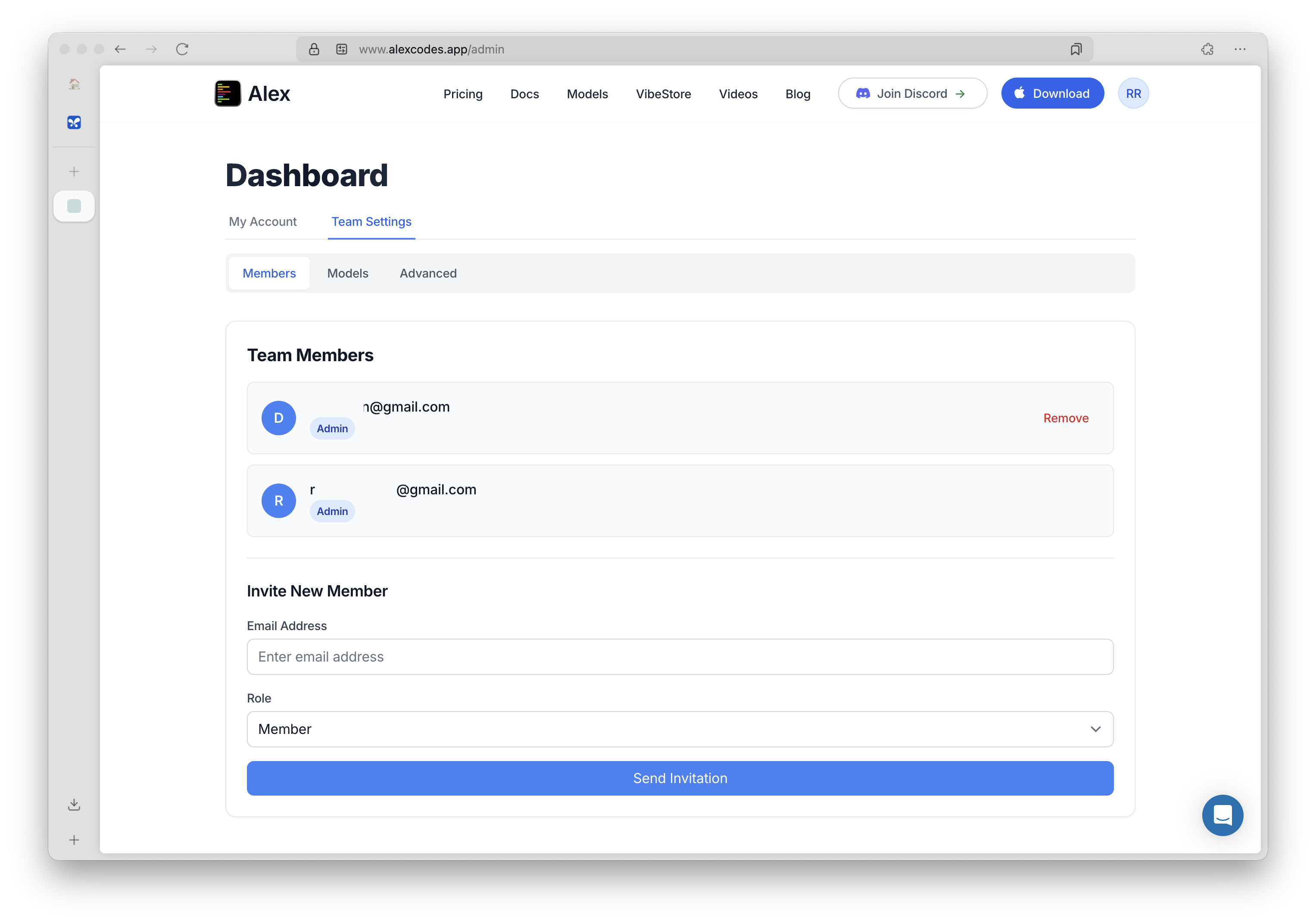
Managing Team Members
1
View Current Members
See all team members with their roles (Admin/Member)
2
Invite New Members
- Enter the email address
- Select their role (Member or Admin)
- Click “Send Invitation”
3
Remove Members
Click “Remove” next to any member to revoke their access
Team members automatically inherit all model configurations set by admins. Individual API keys are not needed when using team models.
Models Configuration
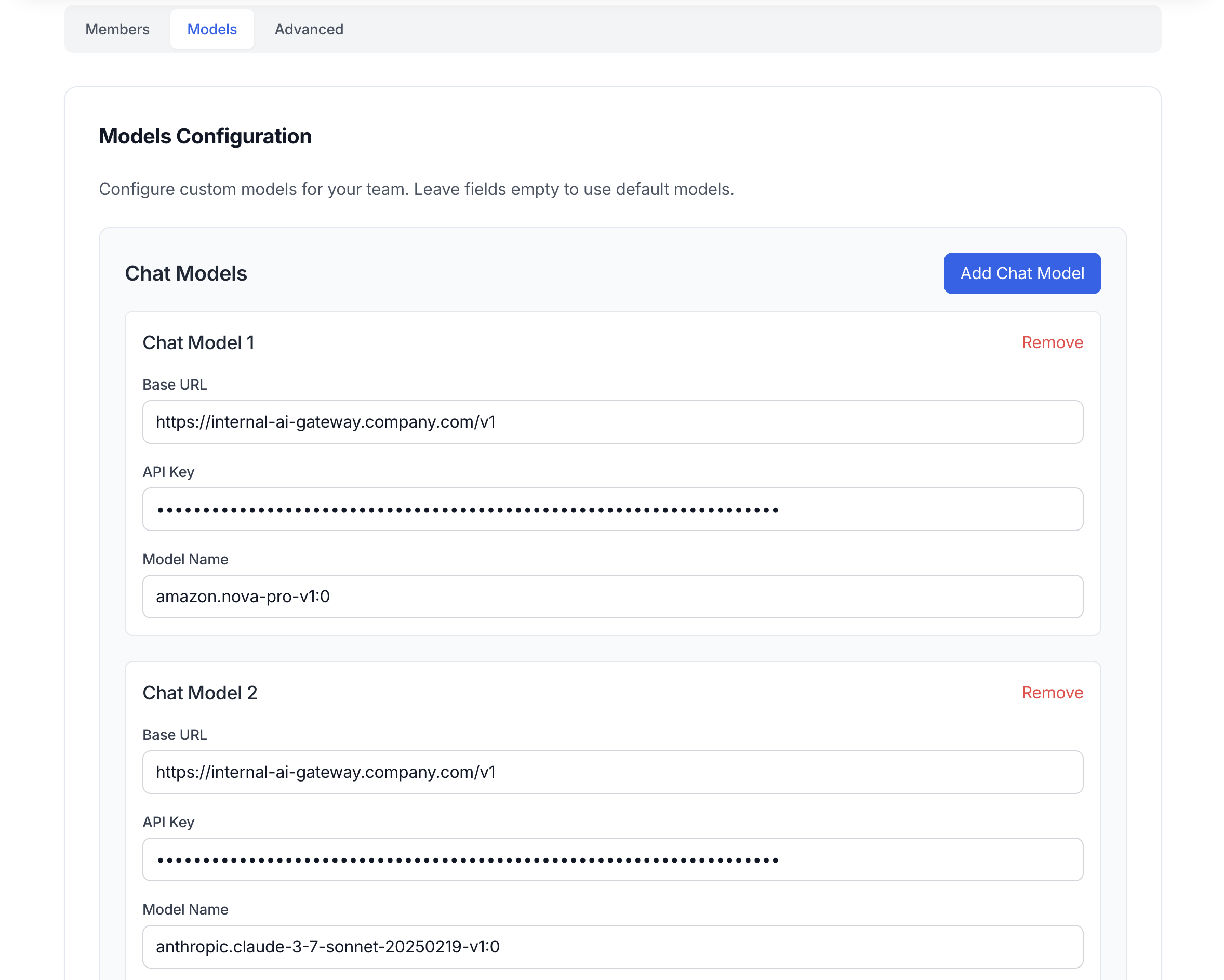
Available Model Types
- Chat Models - These are the large language models for code generation and conversation in Alex Sidebar. Examples are Claude Sonnet 4, Gemini 2.5 Pro and OpenAI o3 model.
- Autocomplete Model - Tab completion while you type. Fast models like Codestral work best here.
- Thinking Model - Models like Gemini 2.5 Pro takes more time to reason on the given prompt and context to come to an answer.
- Voice Model - Handles voice-to-text if you use voice input.
- Embedding Model - Powers codebase search and indexing.
- Code-Apply Model - Specialized for applying code edits.
- Web Model - Used when searching the web.
- Image Model - Analyzes screenshots and generates diagrams. Needs vision capabilities like GPT-4V or Claude.
- Summarizer Model - Condenses long content.
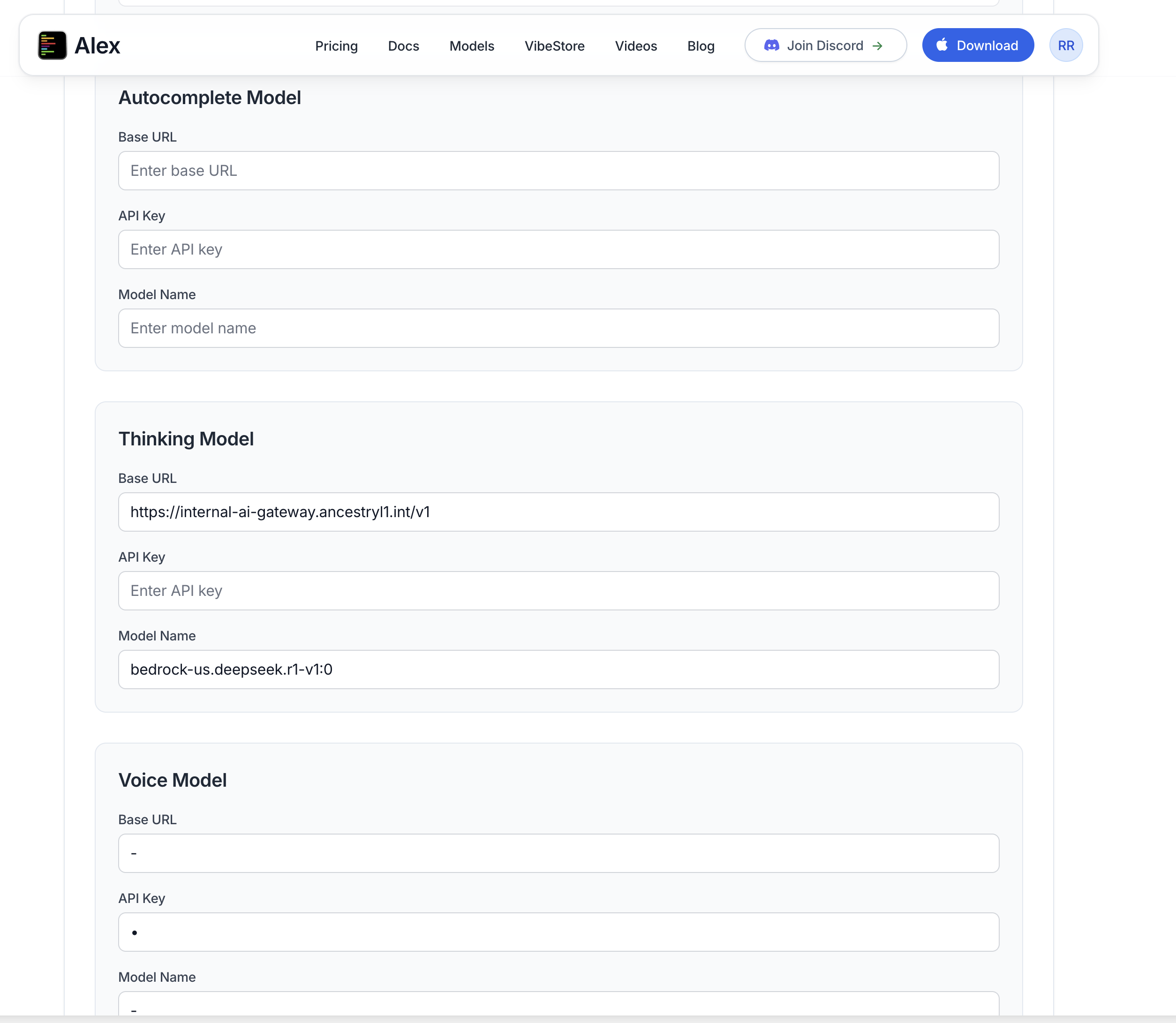
Adding Custom Models
For each model type, configure:1
Set Base URL
Enter your model endpoint URL (e.g.,
https://internal-ai-gateway.company.com/v1)2
Add API Key
Enter the authentication key for your endpoint
3
Specify Model Name
Enter the exact model identifier (e.g.,
amazon.nova-pro-v1.0)Example Configurations
- AWS Bedrock via LiteLLM
- Azure OpenAI
- Self-Hosted Models
Multiple Chat Models
You can add multiple chat models for different use cases:Model Variety
Add different models (Claude, GPT-4, Gemini) and let developers choose based on their needs
Environment Separation
Configure separate models for development, staging, and production environments
Using Team Models in Alex Sidebar
After configuring and saving your team models, they automatically appear in Alex Sidebar for all team members.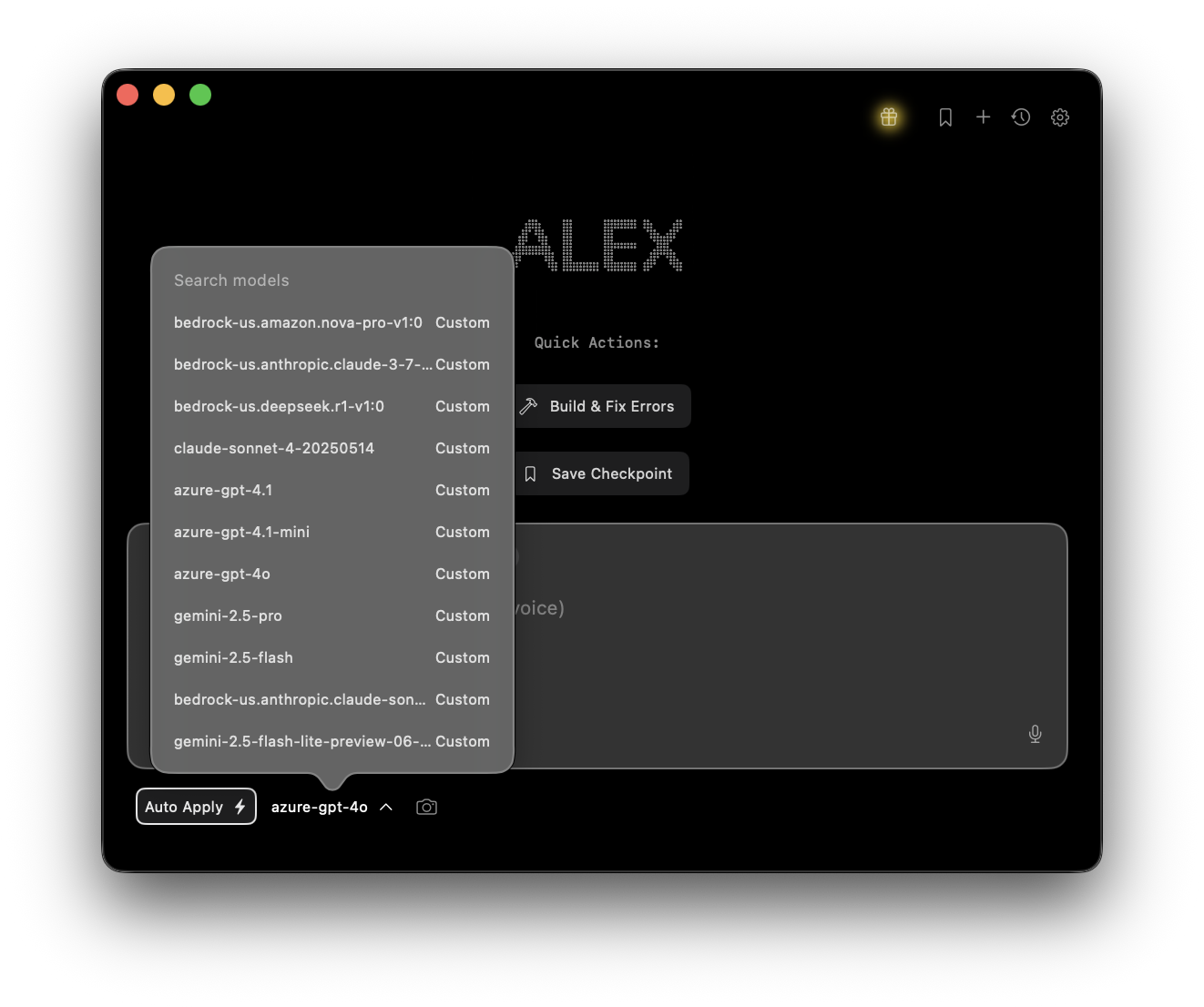
- Select from configured models using the model selector (bottom left of chat)
- See custom model names exactly as configured by admins
Changes to team models apply immediately to all members. Users may need to restart Alex Sidebar to see new models.
Advanced Settings
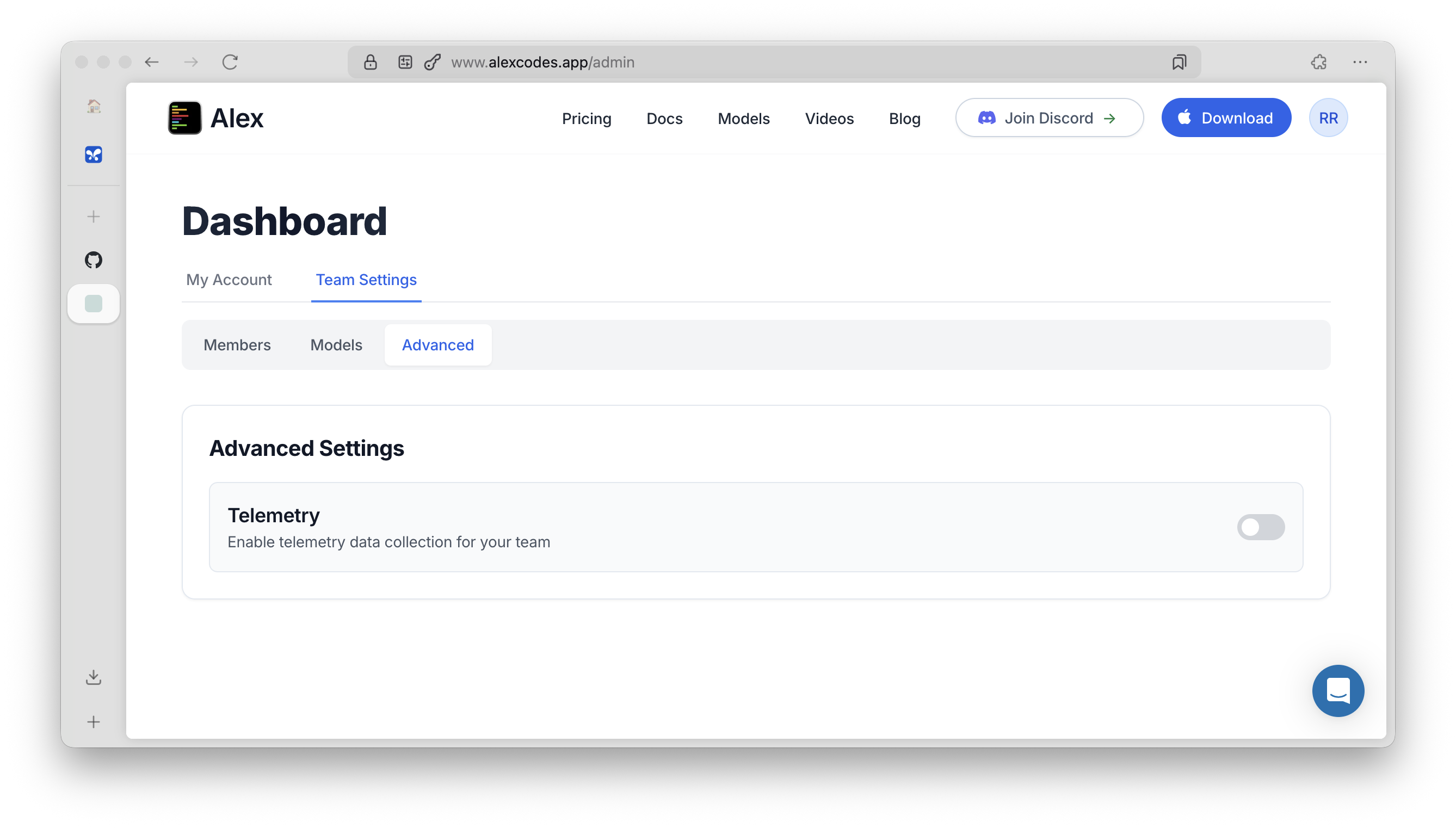
Telemetry
Toggle “Enable telemetry data collection for your team” to control:- Analytics data collection
- Crash logs and error reporting
- Usage statistics
Best Practices
1
Start with Chat Models
Configure chat models first as they’re used most frequently
2
Use Consistent Naming
Name models clearly (e.g.,
dev-claude, prod-gpt4) so developers know which to use3
Test Before Deploying
Verify each model works correctly before adding team members
4
Document Model Purposes
Create internal documentation explaining when to use each model
Cost Management
When using team models:- All API costs are billed to your organization’s accounts
- Individual developers don’t need personal API keys
- Monitor usage through your cloud provider’s dashboard
- Set up billing alerts to track spending
Troubleshooting
Models not appearing for team members
Models not appearing for team members
- Ensure you clicked “Save Changes” after configuring models
- Check members have synced their Alex Sidebar app
- Verify the model endpoints are accessible from user networks
Authentication errors
Authentication errors
- Verify API keys are correct and active
- Check Base URL includes
/v1suffix for OpenAI-compatible endpoints - Ensure API keys have necessary permissions
Can't access admin portal
Can't access admin portal
- Verify you have admin role in the team
- Check you’re using the correct email address
- Contact team@alexcodes.app if you need admin access
Integration with LiteLLM
For teams using LiteLLM proxy:- Deploy LiteLLM with your enterprise models
- Add your LiteLLM endpoint as Base URL
- All team members automatically use your proxy
- No individual cloud accounts needed